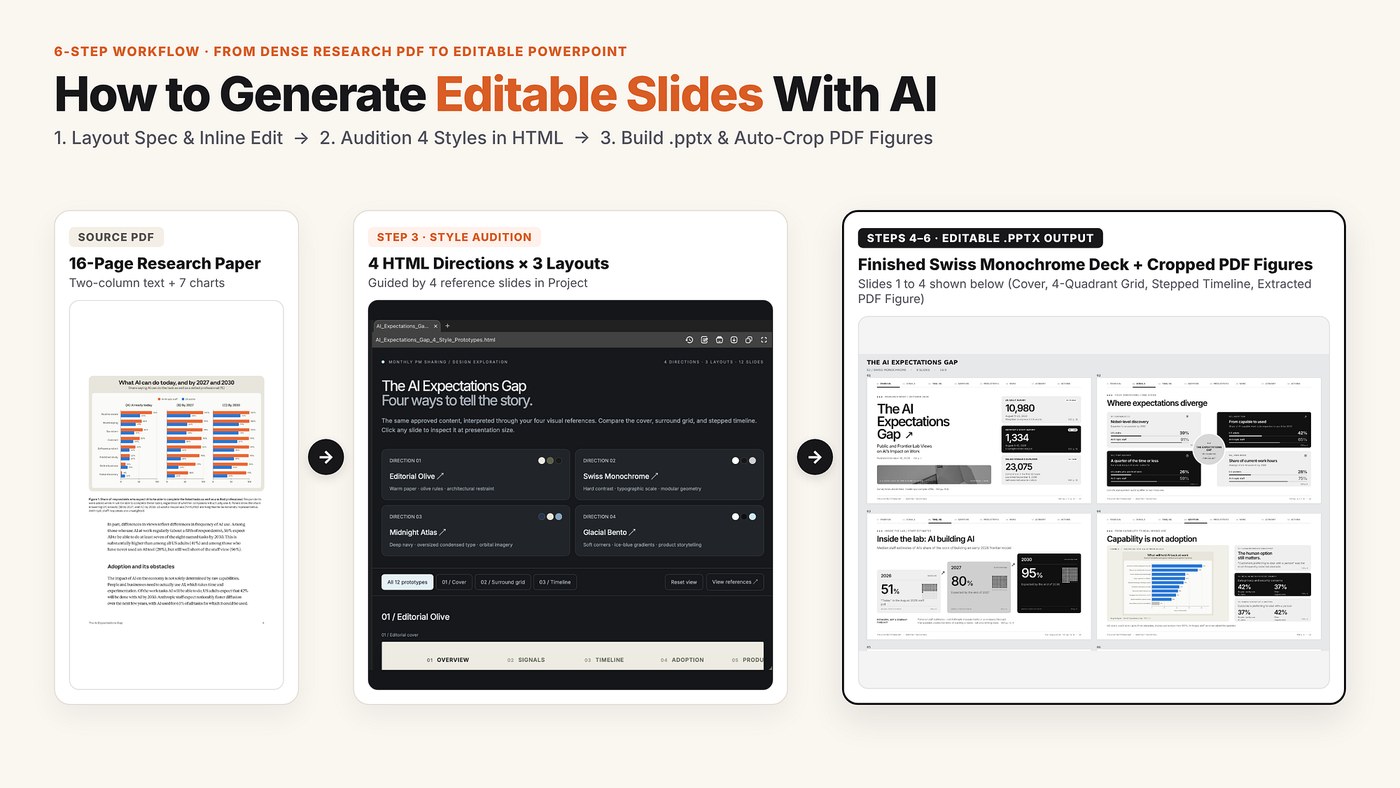
If you downloaded a NotebookLM slide deck as a .pptx and then struggled to fix a single number in PowerPoint, the quickest fix usually isn't a converter. Rebuild the deck from the same source PDF as a native .pptx, where every title, number, and card is a real PowerPoint text box. Below is the 6-step workflow I use for that.
To be fair, NotebookLM, which Google renamed Gemini Notebook in July, makes better-looking decks than anything I get from asking ChatGPT for a .pptx in one shot. That's exactly why people want to edit them. It has offered PPTX downloads since March, and Revise mode lets you write instructions slide by slide. But according to Google's own help page, every revision regenerates an entirely new deck, and revisions count against a quota. One wrong number means rerolling the whole thing.
Most of the converter tools that come up for this search work by reading slide images back into shapes. That's fine for a one-off, but you end up editing a reconstruction of a picture, not your source.
Every few months I have to turn a dense research paper or industry report into a slide deck for a review meeting. Over the past year I tried almost every AI slide workflow people recommend on r/powerpoint, r/notebooklm, and r/ChatGPTPro, and ran into a frustrating split.
Tools that produce good-looking slides on the first try usually hand back something you cannot actually edit: flattened PDFs, static slide images, or browser-only HTML decks that break the moment a teammate asks to change one headline in PowerPoint. Tools that do hand back an editable .pptx file have the opposite problem. One-click apps like Gamma and Tome lock you into a recognizable template grid; custom PPT skills in Codex eat 20% to 30% of a plan's usage quota on a single deck; and asking ChatGPT to generate a 10-slide .pptx in one shot gives you plain bullet boxes that look like a 10-year-old formatted them.
After reading through dozens of user workarounds and testing them on my own decks, I settled on a 6-step sequence that I now run inside HaloMate. The core trick is simple: use a 3-slide HTML preview to audition visual styles in seconds, then have the AI build a native, fully editable .pptx file once the layout rules are locked.
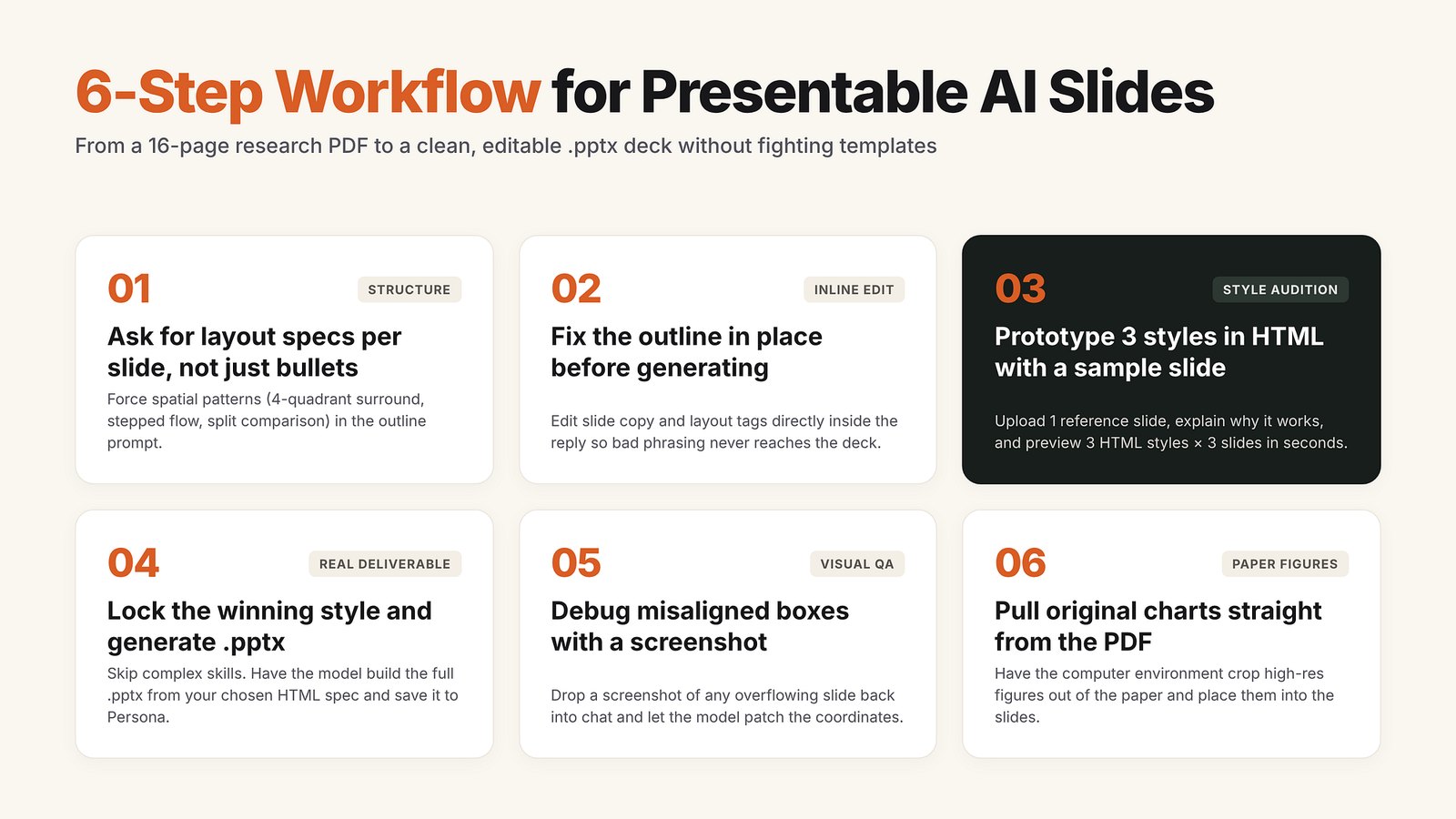
To show how this runs end to end, I took Anthropic's October 16, 2026 economics paper, The AI Expectations Gap (16 pages, 7 figures, comparing how 10,980 US adults and 1,334 Anthropic staff view AI's impact on work by 2030), and turned it into an 8-slide briefing deck.
Step 1: Ask for a page-by-page outline that specifies spatial layout
If you only ask an AI for a slide outline, it gives you bullet points. Bullet points in the outline become bullet points on the slide.
In the first step, I upload the PDF into my Project in HaloMate (which pulls exact lines and numbers from the file without RAG summarization drift) and force the outline prompt to define both the exact on-slide copy and the spatial arrangement for every page. If I want Slide 2 to use a 4-quadrant surround grid and Slide 3 to use a stepped left-to-right timeline, I say so here.
Here is the prompt structure I use for Step 1:
Read the attached report PDF and create a detailed 8-slide presentation outline.
For EVERY slide, you must specify:
1. Slide Title and Active Section Tag (for a top progress navigation bar).
2. Exact on-slide text content and numbers (cite the exact page number from the PDF; do not invent or round numbers).
3. Spatial Layout Specification: how the elements are arranged on the 16:9 canvas.
Include layout variety across slides:
- Slide 1: Split editorial cover (left title block, right 3 stacked sample-size cards).
- Slide 2: 4-quadrant surround grid around a central badge.
- Slide 3: 3-column stepped timeline (rising left to right across 2026, 2027, and 2030).
- Slides 4 to 7: 2-column split reserving a container for the original figure from the PDF on one side and 3 structured takeaway cards on the other.
- Slide 8: 3-column operating plan.
Do not generate code or slides yet. Return only the structured spec.
You can paste that full prompt into any chat tool. In my own setup, I split it in two: the permanent rules (always output Title + Active Section Tag + Exact PDF page citations + Spatial Layout Spec first, and never generate code before I approve the outline) live inside the Persona of my Slide Master Mate. That way, when I start a new deck, my actual message in chat is just the two or three lines that change each time ("8 slides from this PDF; make Slide 2 a 4-quadrant surround grid and Slide 3 a stepped timeline").
Step 2: Review and fix the outline inline before touching design
The first outline rarely gets every detail right. On Slide 5 (Reported time savings differ sharply), I wanted the first takeaway card to show all three comparison numbers from page 7 of the report (59% for Anthropic staff, 26% for US adults who use AI at work, and 21% for US adults who do not use AI at work) right next to Figure 4 from page 7.
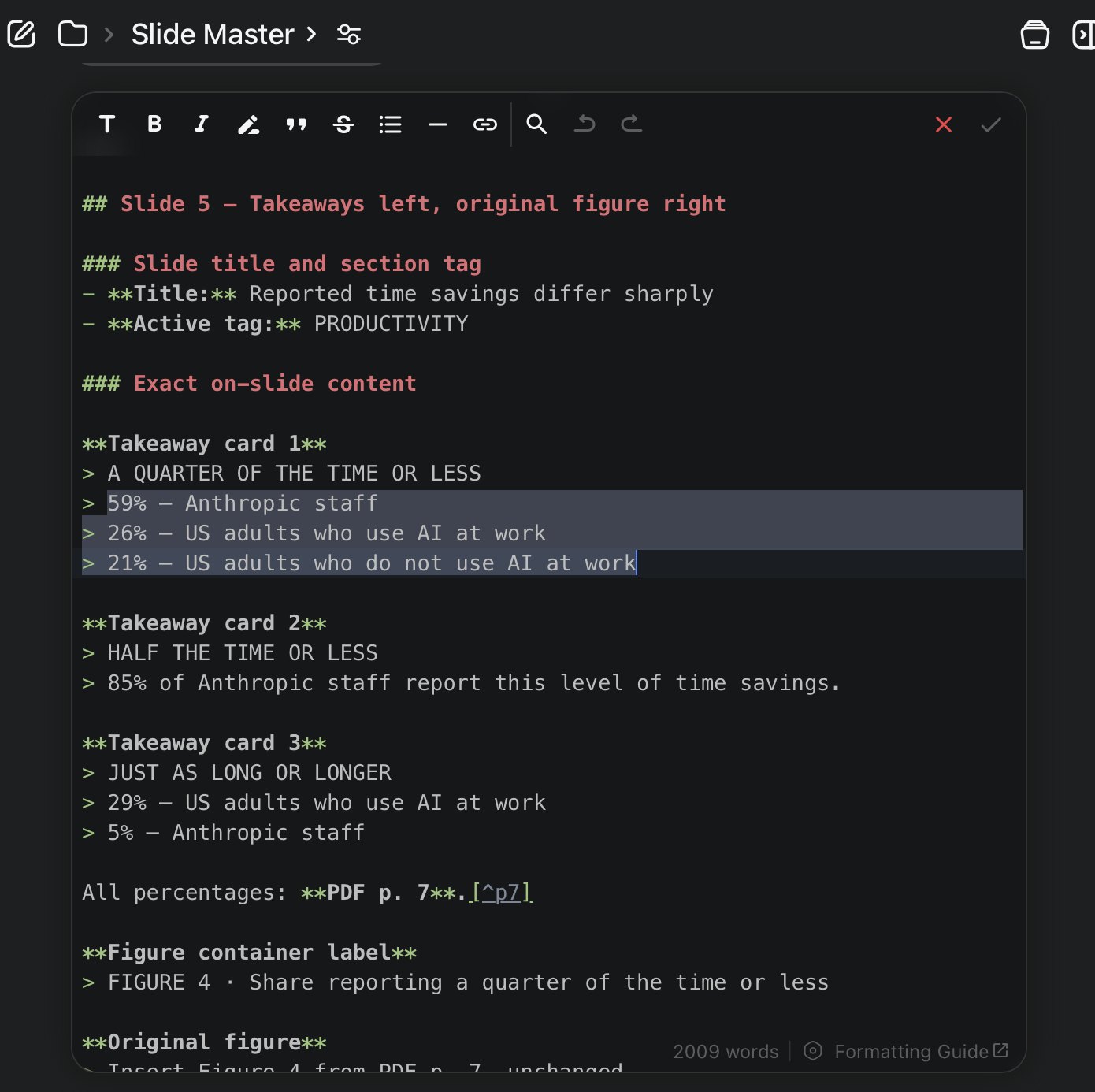
Instead of sending three follow-up messages ("add the 21% line to Slide 5", "keep Slide 4 as is"), I open the reply inline, edit the text directly in the message, and save it. Every step after this reads from that edited outline.
Step 3: Feed reference slides and audition HTML style prototypes (3 slides per style)
This is the step that saves the most time. Generating a full .pptx takes a minute or two of script execution, and normally you cannot see what it looks like until you download and open it. HTML renders in seconds.
So before generating any PowerPoint file, I ask Slide Master to build visual style prototypes in HTML, 3 sample slides per style (Slides 1, 2, and 3 from the approved outline: the cover, the 4-quadrant surround grid, and the stepped timeline).
One detail makes a huge difference in quality here: give the model real slide designs you like as references, and tell it why you like them. Telling a model "make it clean and modern" produces generic gradients. Dropping four reference slide screenshots into my Project files and pointing out what makes them work (such as a top chapter navigation bar showing the active section, high-contrast stat cards, and strict grid alignment) gives the model concrete visual constraints to follow.
Using the approved outline for Slides 1, 2, and 3, generate 4 distinct visual style prototypes in HTML (3 slides per style, 16:9 aspect ratio) so I can compare them: (The Project has 4 reference style images; match their visual language.)
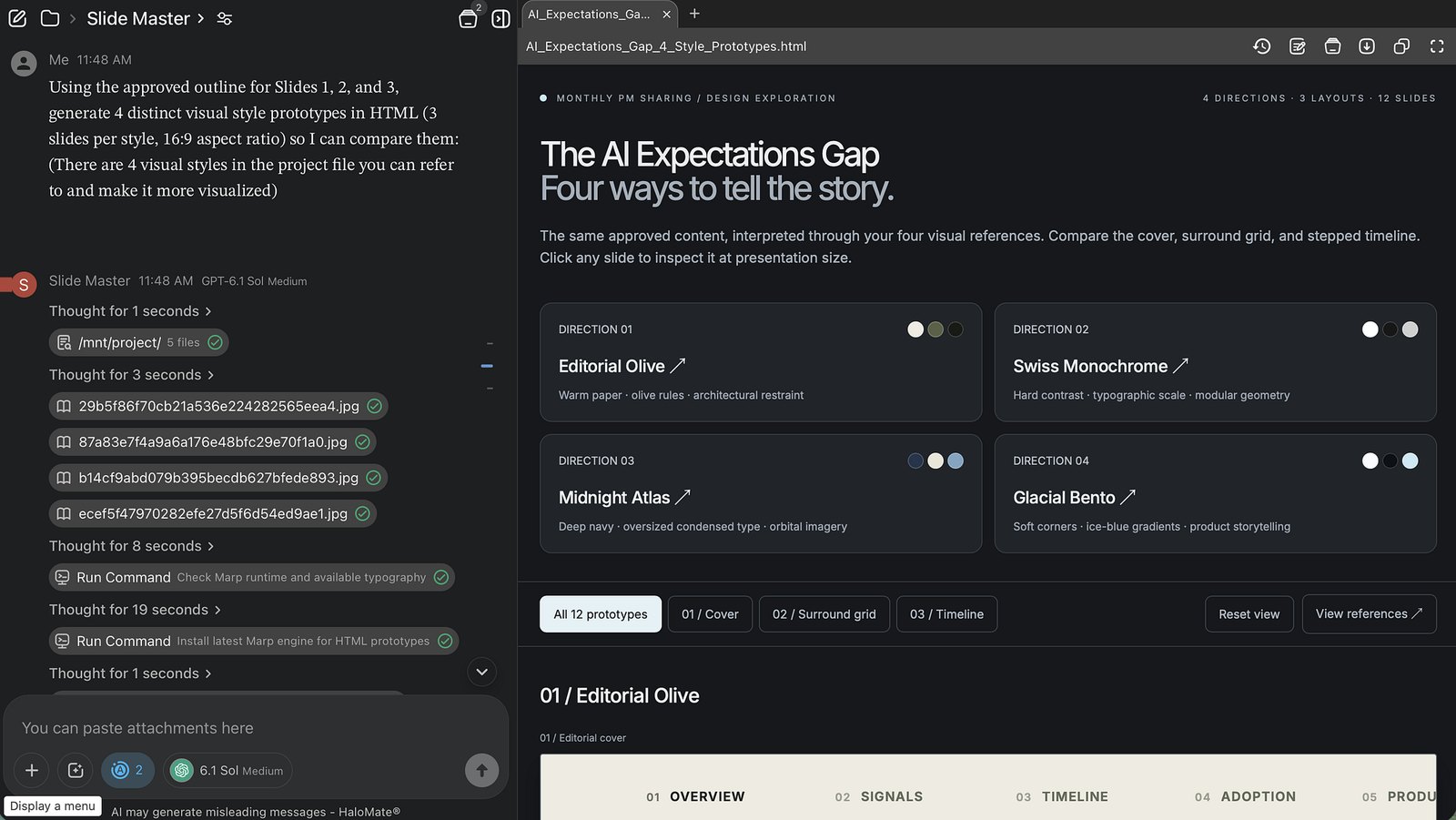
As shown in the screenshot above, Slide Master read the four reference .jpg files in the Project and built a single interactive HTML preview (AI_Expectations_Gap_4_Style_Prototypes.html) in the right-hand panel. I could filter by layout (01 / Cover, 02 / Surround grid, 03 / Timeline) or scroll through all 12 prototypes without downloading anything.
Comparing the four directions on the actual content made the choice easy: Direction 02 (Swiss Monochrome) gave the cleanest contrast between the black-and-white data cards and the light-gray chart containers we needed to pull from the Anthropic PDF.
Step 4: Lock the winning style and generate the full .pptx deck
Many people stop at HTML slides because browser decks look slick. In real work and academic reviews, though, someone almost always asks for the .pptx file so they can drop two of your slides into a larger deck or edit a label ten minutes before the meeting.
Once I picked 02 / Swiss Monochrome, I told Slide Master to generate the complete 8-slide .pptx file following that exact style and the approved 8-slide outline.
Here is an observation from testing different environments: when you give a frontier GPT model a clear visual spec in chat and let its code environment build the .pptx directly, the output is noticeably cleaner than running a heavy third-party PPT skill in Codex or a CLI agent. Those external skill wrappers force the model through rigid boilerplate templates and burn 20% to 30% of your usage limit on multi-step tool loops. Letting the model build the presentation directly from the HTML spec you just approved produces higher completion quality at a fraction of the quota cost.
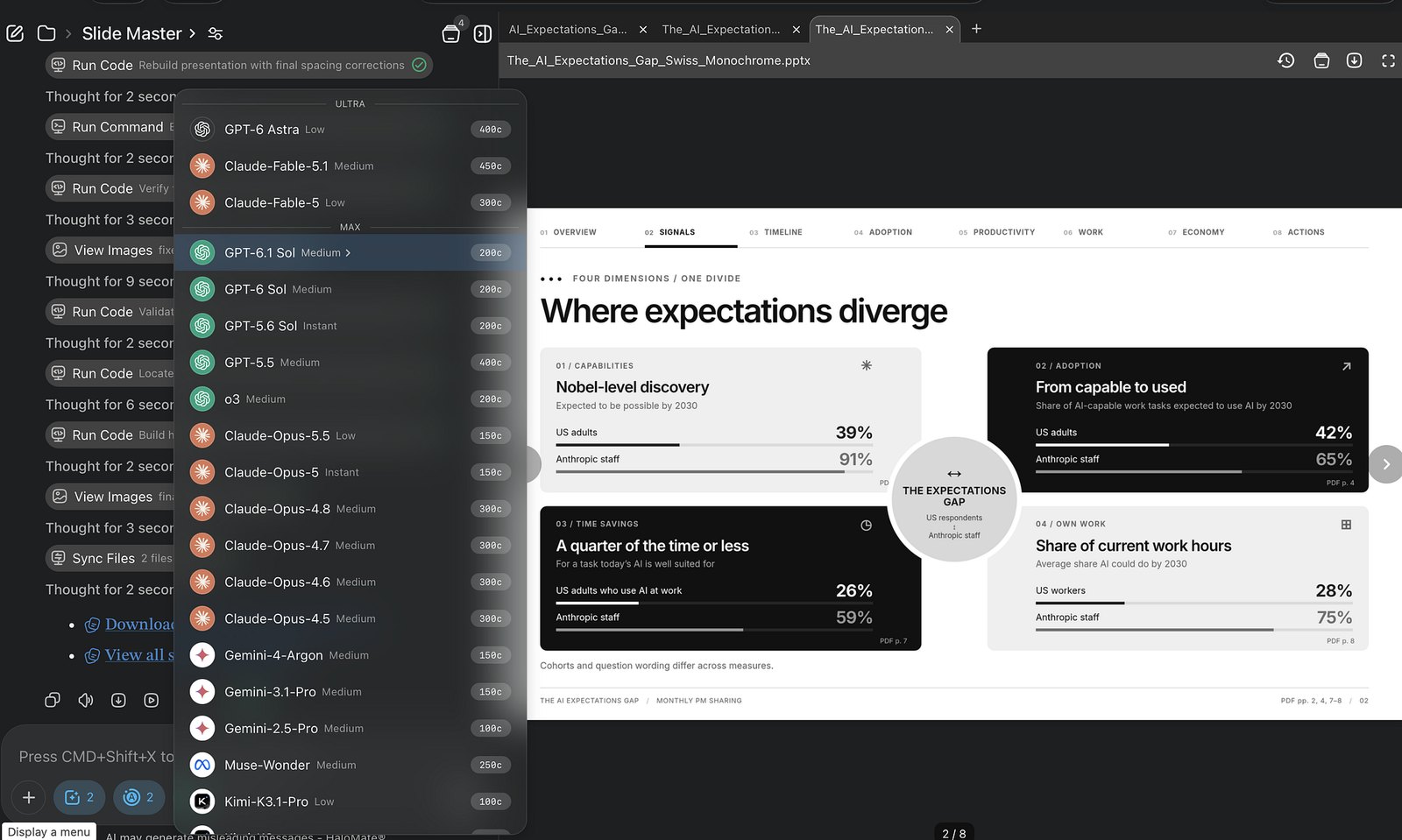
In HaloMate, Halo Computer runs that build right inside the chat, syncs the .pptx file (The_AI_Expectations_Gap_Swiss_Monochrome.pptx) back to the thread, and opens an interactive slide preview in the right-hand tab (2 / 8).
Step 5: Fix overflowing or clipped boxes with visual QA
No matter which model writes the .pptx script, the first pass almost always has one or two geometry bugs. PowerPoint text frames do not auto-resize the way browser flexbox does. If a bullet point runs two lines longer than expected, the text spills over the bottom border of the card.
You do not need to open PowerPoint and nudge text boxes by hand when that happens:
- In any chat interface: take a screenshot of the broken slide, drop it back into the chat, and tell the model where the boxes collide ("On Slide 5, Card 1 overflows its bottom border into Card 2; shrink the font size and adjust card height"). It patches the coordinates and hands back a clean .pptx in about twenty seconds.
- Automated visual QA in Halo Computer: if you look at the tool steps on the left edge of the Step 4 screenshot (View Images: fixed-5.png, fixed-8.png and final-overview-qa.png), Halo Computer rasterized Slides 5 and 8 into PNGs, checked them for clipped content, and rebuilt the presentation with spacing corrections before handing back the download link.
Step 6: Pull original figures straight from the PDF into the .pptx slides
When you present a research paper or a data-heavy industry report, redrawing the authors' charts is a waste of time, and taking manual screenshots page by page leaves you with inconsistent margins and blurry resolution.
Because the source PDF (The_AI_Expectations_Gap.pdf) was already in the Project, I told Slide Master in the outline spec to pull the original figures straight from the PDF (Figure 2 from page 5, Figure 4 from page 7, Figure 6 from page 10, and Figure 7 from page 11) and insert them unchanged into the figure containers on Slides 4, 5, 6, and 7.
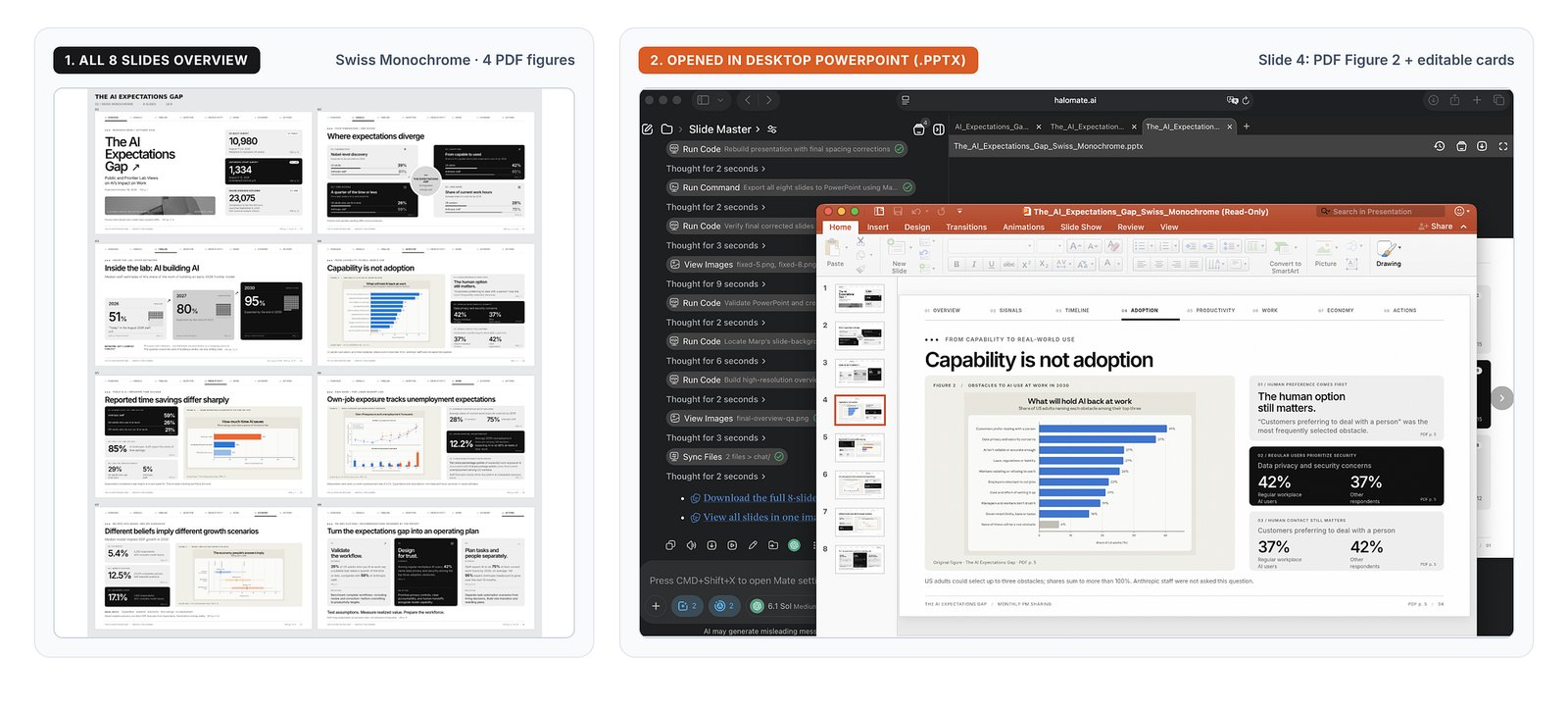
When you download the .pptx file and open it in desktop PowerPoint (right half of the image above), the cropped paper figures sit cleanly inside the slide layout alongside native, editable text cards.
Why I run all six steps in HaloMate
You can run these 6 steps across separate tools: draft the outline in one chat tab, download .html files to preview in Chrome, and run Python or a coding agent locally to assemble the .pptx. I used to do a version of that.
I moved the whole workflow into HaloMate for four practical reasons:
- My style references and outline rules stay in Slide Master, not in a folder I re-upload every week. The four reference .jpg slides live in the Project files, and the layout spec rules live in the Mate's Persona. When a new report lands next week, I drop the PDF in and write two lines instead of a 20-line prompt.
- HTML exploration and .pptx preview live in adjacent tabs on the right-hand panel. I can scroll through all 12 HTML style prototypes in one tab and flip to the generated .pptx preview in the next tab without downloading intermediate files.
- I can switch models mid-workflow without losing the PDF or the approved outline. Because the Mate (Slide Master + Memory + Project files) is separate from the underlying model engine, I can use GPT-6.1 Sol to build the .pptx and switch to Claude Opus 5.5 or Gemini 4 Argon in the bottom-left picker whenever I want a different take on copy or layout.
- Halo Computer handles the ugly last mile in the same thread. Cropping original figures out of the PDF at high resolution and checking rendered slides (fixed-5.png, fixed-8.png) for clipped text happen in the same conversation, without burning 20% to 30% of a coding agent quota.
Common questions about generating editable slides with AI
Can you edit NotebookLM slides in PowerPoint?
Partly. NotebookLM (now Gemini Notebook) can download a slide deck as a .pptx, and its Revise mode lets you request changes slide by slide. But each revision regenerates the whole deck and counts against a quota, and many people find the exported slides hard to edit directly in PowerPoint. If you need to change text and numbers freely, rebuilding the deck as a native .pptx from the same source PDF is more reliable than converting the exported slides.
How do I get fully editable PowerPoint (.pptx) slides from AI instead of flat PDFs or images?
Avoid workflows that render each slide as a single image, which is how many one-click deck generators work. Instead, use HTML only to preview and pick your visual style on 3 sample slides, then instruct a workspace with a code environment (such as Halo Computer in HaloMate) to build the final deck as a native .pptx file where every card, title, and label is an editable PowerPoint shape.
Why do ChatGPT PowerPoint (.pptx) slides usually look so plain?
When you ask ChatGPT to create a .pptx file in one shot, it writes a quick python-pptx script using default system fonts and basic bullet boxes with no visual reference. Giving the model a reference slide image and asking it to prototype 3 sample slides in HTML first forces it to establish a real color palette, card grid, and top navigation bar before it writes any PowerPoint code.
Is it better to make PPTs with Codex skills or in chat?
For most presentation decks, chat is both faster and cleaner. Heavy PPT skill packs in Codex or CLI agents wrap the model in rigid boilerplate templates and often consume 20% to 30% of your plan's usage quota on multi-step debugging loops. Letting a frontier model in chat build the .pptx directly from an HTML style prototype you already approved gives you better layout control at a fraction of the quota cost.
How do I convert a research paper PDF into PowerPoint slides without losing the charts?
Instead of asking the AI to redraw complex charts from scratch, upload the PDF into a workspace with a code environment (such as Halo Computer in HaloMate) and instruct it in your slide outline to crop the original figures directly from the PDF pages at high resolution and insert those images into the corresponding .pptx slide containers.
Can you still edit the AI-generated slides in Microsoft PowerPoint afterwards?
Yes. Unlike flattened image slides or web-only decks, the output is a standard .pptx file. The cropped PDF figures sit inside image containers, while all titles, numbers, and takeaway cards remain native PowerPoint shapes and text boxes that anyone on your team can click and edit.